Download CAD Data
To download CAD data from product pages, please follow the instructions below. Please note that:
- * You will need to log into your account to download CAD data.
- * CAD data may be unavailable for some products.
Select, Preview and Download CAD Data
1 Select and download CAD data
Click on “CAD Download” button and select the CAD data to download for the selected part number as shown below.
Select a format and click "Generate" to start the download. (It may take some time to generate the preview.)
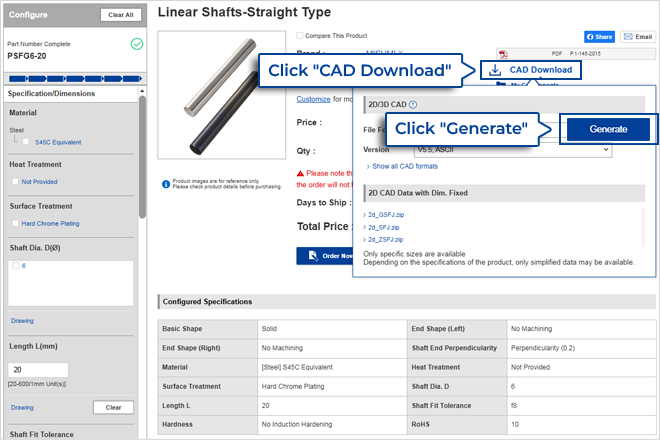
Mechanical components (MISUMI brand)
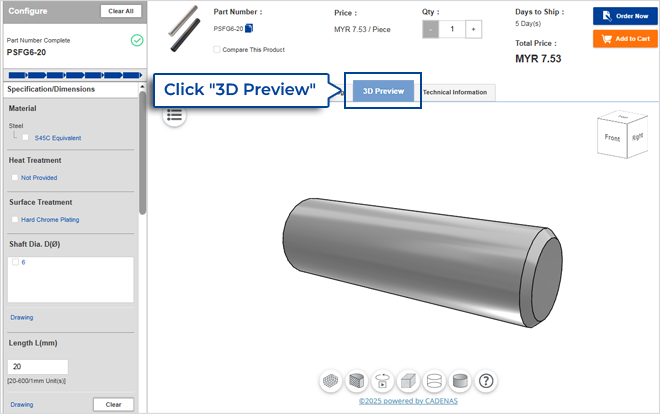
1 Preview CAD data for mechanical components (MISUMI brand)
Click on "3D Preview" tab to generate a 3D preview.
(It may take some time to generate the preview.)
*Please note that:
1. if you have not selected a part number, kindly specify the part number you require in "Specification/Dimensions" in the panel on the left.
2. if you have not specified a part number, the 3D Preview may not appear.
2 How to manipulate the 3D preview
Rotate: Left-click and drag the mouse pointer on the image.
Zoom: Press Ctrl and left-click while dragging the mouse pointer up to enlarge the image or down to reduce it.
3 3D preview control panel

- From left to right:
- 1. Transparent drawing (line drawing)
- 2. Delete opaque lines
- 3. Opaque line drawing available
- 4. Restore display size
- 5. Front preview
- 6. Back previewdata
- 7. Left preview
- 8. Right preview
- 9. Preview from above
- 10. Preview from bottom
- 11. 3D rotational view